Category Archives: Wordpress

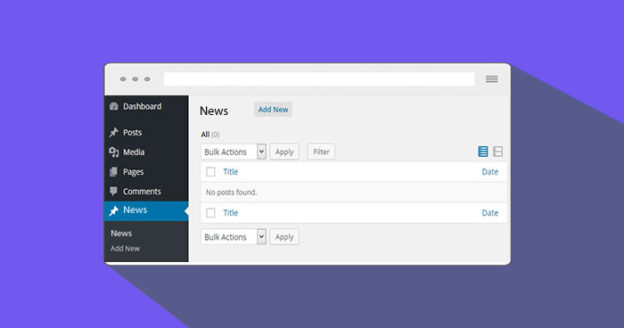
How to create custom post type with category and extra fields?

Here we will explain to you how to create a custom post type with a category and extra fields in WordPress. This tutorial will help for making the custom post type so you can generate your posts with categories and show them on the front page.

Step 1)

Below is the code where you can create a custom post type with a category.

<?php
add_action( 'init', 'create_slider' );
function create_slider() {
    register_post_type( 'slider',
        array(
            'labels' => array(
                'name' => 'Slider',
                'singular_name' => 'Slide',
                'add_new' => 'Add New',
                'add_new_item' => 'Add New Slide',
                'edit' => 'Edit',
                'edit_item' => 'Edit Slide',
                'new_item' => 'New Slide',
                'view' => 'View',
                'view_item' => 'View Slide',
                'search_items' => 'Search Slider',
                'not_found' => 'No Slider found',
                'not_found_in_trash' => 'No Slider found in Trash',
                'parent' => 'Parent Slide'
            ),
 
            'public' => true,
            'menu_position' => 15,
            'supports' => array( 'title', 'editor', 'thumbnail' ),
            //'taxonomies' => array( '' ),
            //'menu_icon' => plugins_url( 'images/image.png', __FILE__ ),
            'has_archive' => true
        )
    );
}

function slider_taxonomy() {  
	register_taxonomy(  
		'slider_category',  //The name of the taxonomy. Name should be in slug form (must not contain capital letters or spaces). 
		'slider',        //post type name
		array(  
			'hierarchical' => true,  
			'label' => 'Slider category',  //Display name
			'query_var' => true,
			'rewrite' => array(
				'slug' => 'slider_cat', // This controls the base slug that will display before each term
				'with_front' => false // Don't display the category base before 
			)
		)  
	);  
}
add_action( 'init', 'slider_taxonomy');

function add_post_format_filter_to_slider_dropdown($query){
	if (function_exists('custom_post_type_filter_dropdown')) {	
		$cur_post_type = 'slider';
		custom_post_type_filter_dropdown($cur_post_type,'slider_category',$query);
	}
}
add_action('restrict_manage_posts','add_post_format_filter_to_slider_dropdown');

function add_post_format_filter_to_slider($query){
	if (function_exists('custom_post_type_filter')) {
		$cur_post_type = 'slider';
		custom_post_type_filter($cur_post_type,'slider_category',$query);
	}
}	
add_action('pre_get_posts','add_post_format_filter_to_slider');
	
function slider_type_columns( $taxonomies ) {
	$taxonomies[] = 'slider_category';
	return $taxonomies;
}
add_filter( 'manage_taxonomies_for_slider_columns', 'slider_type_columns' );
		
	
add_action('init','add_custom_meta_boxes');
function add_custom_meta_boxes(){
	add_action( 'add_meta_boxes', 'slide_heading_meta_box_add' );
	add_action( 'save_post', 'slide_heading_meta_box_save' );
}
function slide_heading_meta_box_add()
{
    add_meta_box( 'slide_heading', 'Custom URL/Heading', 'slide_heading_meta_box', 'slider', 'normal', 'high' );
}
function slide_heading_meta_box()
{
	$custom_metas = get_post_custom( $post->ID );	
	$slide_url = isset( $custom_metas['slide_url'] ) ? esc_attr( $custom_metas['slide_url'][0] ) : '';
	$slide_heading = isset( $custom_metas['slide_heading'] ) ? esc_attr( $custom_metas['slide_heading'][0] ) : '';
	$heading_color = isset( $custom_metas['heading_color'] ) ? esc_attr( $custom_metas['heading_color'][0] ) : ''; ?>		
	<p>
		<label for="fom_link3">URL: </label>
		<input type="text" name="slide_url" id="slide_url" value="<?php echo $slide_url; ?>" size="34" />
		
		<label for="fom_link3">Heading: </label>
		<input type="text" name="slide_heading" id="slide_heading" value="<?php echo $slide_heading; ?>" size="34" maxlength="50" />
	
		<label for="fom_link3">Color: </label>
		<input type="text" name="heading_color" id="heading_color" value="<?php echo $heading_color; ?>" size="5" maxlength="10" />
	</p><?php
}

function slide_heading_meta_box_save($post_id){

	// Bail if we're doing an auto save
    if( defined( 'DOING_AUTOSAVE' ) && DOING_AUTOSAVE ) return;
 
     // if our current user can't edit this post, bail
    if( !current_user_can( 'edit_post' ) ) return;
     
    // now we can actually save the data
    $allowed = array();
	
    // Make sure your data is set before trying to save it	
	if( isset( $_POST['slide_url'] ) ) {
		update_post_meta( $post_id, 'slide_url', $_POST['slide_url'] );
	}
	
	if( isset( $_POST['slide_heading'] ) ) {
		update_post_meta( $post_id, 'slide_heading', $_POST['slide_heading'] );
	}
	
	if( isset( $_POST['heading_color'] ) ) {
        update_post_meta( $post_id, 'heading_color', wp_kses( $_POST['heading_color'], $allowed ) );
	}
}

Step 2)

Now visit the admin side, and you can see your custom post type with the category and extra fields there.
Create a Custom Forgot Password Page In WordPress

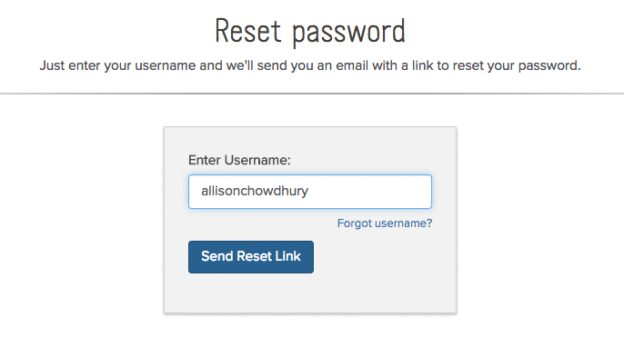
Here we will explain to you how to create a custom forgot password/reset password page in WordPress. This tutorial will help for making the custom front-end page where your subscriber, author, and many other roles of users will change their password to the system.

Step 1)

Make one template page in the WordPress active theme folder and put the below code there.

<?php
/*  Template Name: Forgot Password Template */
get_header();
global $wpdb;
if( (isset($_REQUEST['update_confirm'])) AND ($_REQUEST['update_confirm']='update_confirm') ){

	$newpass=md5($_POST['newpass']);
	$usernameemail=$_POST['useremail'];
	$kkey =$_POST['key'];

	$wpdb->query($wpdb->prepare("UPDATE $wpdb->users SET user_pass='".$newpass."',user_activation_key='' WHERE (user_login='".$usernameemail."' OR user_email='".$usernameemail."') AND user_activation_key='".$kkey."' "));

	echo "<span class='msgg-ok'>Your password has been reset.<br> <a href='/user-login/'>Log in</a></span>";

}

if( (isset($_REQUEST['update'])) AND ($_REQUEST['update']=='update')){
	
	$username_email=$_POST['uemail'];
	
	$Qry = $wpdb->get_results("SELECT user_login,user_email FROM $wpdb->users WHERE user_login='".$username_email."' OR user_email='".$username_email."'");
	if($Qry[0]->user_login != '' && $Qry[0]->user_email != ''){
		$email = $Qry[0]->user_email;
		$user = $Qry[0]->user_login;
		$homeurll=home_url('/');

		$autogenerate_key =crypt($username_email);

		$wpdb->query($wpdb->prepare("UPDATE $wpdb->users SET user_pass='".$newpass."',user_activation_key='".$autogenerate_key."' WHERE (user_login='".$username_email."' OR user_email='".$username_email."') "));


		$mailmsg="Someone requested that the password be reset for the following account:\n$homeurll.\n\nUsername: $user\n\nIf this was a mistake, just ignore this email and nothing will happen.\n\nTo reset your password, visit the following address:\n$homeurll/forgot-password/?action=rp&key=$autogenerate_key&login=$user";


		mail($email,'[The Pacifico Partnership] Password Reset',$mailmsg);

		echo "<span class='msgg-ok'>Check your e-mail for the confirmation link.</span>";

	}else{
		echo "<span class='msg-errr'>Username or Email is not found.</span>";
		$notfound="errror";
	}
}

?>
<?php if($_GET['action']=='rp'){ ?>

<style>
#forget_display{display:none;}
</style>
<?php } 

if((!$_POST) OR ($notfound!='')){

?>

<div id='forget_display'>
<form action='' method='post' onsubmit='return blank_field();'>
<div >  <label>Please enter your username or email address.You will receive a link to create a new password via email.</label><br /><br />
<div> <input name='uemail' type='text' id='uemail' onfocus="if(this.value=='Enter Username/E-mail') this.value=";" onblur="if (this.value=='')
this.value='Enter Username/E-mail';" placeholder='Enter Username/E-mail'/></div> <input type='submit' value='Get New Password'/> </div>
<input type='hidden' name='update' value='update' />

</form>
</div>
<?php }?>

<?php if( (isset($_REQUEST['action'])) AND ($_REQUEST['action']=='rp')) {?>
<div>
<form action="<?php echo home_url('/') ?>?page_id=9" method="post" onsubmit="return blank_pfield();">
<div>
<label>Enter new password:</label><div>  <input name="newpass" type="password"  id="newpass"/> </div></div><br />
<div><label>Repeat password:</label><div>  <input name="repeat-pass" type="password"  id="repeat-pass"/> </div></div><br />
<div><label>&nbsp;</label> <input type="submit" value="Change password" /></div>
<input type="hidden" name="update_confirm"  value="update_confirm"/>
<input type="hidden" value="<?php echo $_REQUEST['login'];?>" name="useremail" />
<input type="hidden" name="key" value="<?php echo $_REQUEST['key'];?>" />
</form>
</div>
<?php }?>

<script>

function blank_field()

{

if(document.getElementById('uemail').value=='Enter Username/E-mail')
{
alert("Please enter username or email");
return false;
}
else
{
return true;
}
}

function blank_pfield()

{

if(document.getElementById('newpass').value=='')
{
alert("Please enter new password");
return false;
}

if(document.getElementById('repeat-pass').value=='')
{
alert("Please enter repeat password");
return false;
}

if(document.getElementById('newpass').value!=document.getElementById('repeat-pass').value)
{
alert("Password do not match");
return false;
}

return true;

}
</script>
<?php get_footer(); ?>
<style>
	.choko_register_box{margin: 0 auto;width: 50%;}
	.choko_register_row_ctn{margin-bottom: 15px;}
	.choko_register_row_ctn label{display: block;margin-bottom: 10px;}
	.choko_register_row_ctn input{width: 97%;border-radius: 0}
	.choko_register_row_ctn select{width: 100%;border-radius: 0}
	.choko_register_error_msg{color: red;margin-bottom: 15px;}
</style>

Step 2)

Now make a forgot password page in wp-admin/add new page. and select the “Forgot Password Template” as a template page. Update your page.

Step 3)

Now visit your page in the front end; it will display the custom forgot password form, where if the user exists, it will send an email link to reset the new password.

Create a Custom Login Page In WordPress

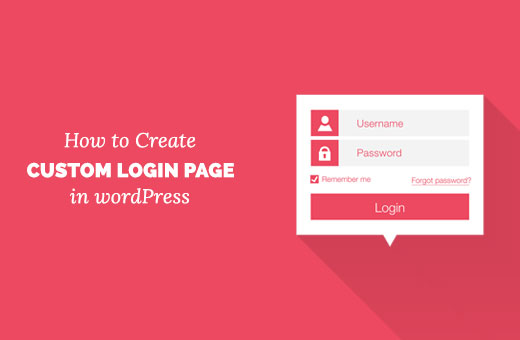
Here we will explain to you how to create a custom login page in WordPress. This tutorial will help for making the custom front-end page where your subscriber, author, and many other roles of users will log in to the system.

Step 1)

Make one template page in the WordPress active theme folder and put the below code there.

<?php
/*  Template Name: Login Template */
get_header();
 

?>
<div class="wrapper">
 	<div class="choko_login_box">
		<form id="login" action="login" method="post" class="choko_login_form">
			<div class="choko_login_msg_ctn"><p class="status"></p></div>		
			<div class="choko_login_row_ctn">
				<label for="username">Username<span>*</span>:</label>
				<input type="text"  name="username" id="username" />
			</div>
	        <div class="choko_login_row_ctn">
				<label for="password">Password<span>*</span>:</label>
				<input type="password"  name="password" id="password" />
			</div>
	        <a class="lost" href="<?php echo wp_lostpassword_url(); ?>">Lost your password?</a>
	        <input class="submit_button" type="submit" value="Login" name="submit">
	        <?php wp_nonce_field( 'ajax-login-nonce', 'security' ); ?>
	    </form>
 	</div>
</div>
<?php get_footer() ?>
<style>
	.choko_login_box{margin: 0 auto;width: 50%;}
	.choko_login_row_ctn{margin-bottom: 15px;}
	.choko_login_row_ctn label{display: block;margin-bottom: 10px;}
	.choko_login_row_ctn input{width: 97%;border-radius: 0}
	.choko_login_error_msg{color: red;margin-bottom: 15px;}
</style>
<script>
	jQuery(document).ready(function($) {
    $('form#login').on('submit', function(e){
        $('form#login p.status').show().text(ajax_login_object.loadingmessage);
        $.ajax({
            type: 'POST',
            dataType: 'json',
            url: ajax_login_object.ajaxurl,
            data: { 
                'action': 'ajaxlogin', //calls wp_ajax_nopriv_ajaxlogin
                'username': $('form#login #username').val(), 
                'password': $('form#login #password').val(), 
                'security': $('form#login #security').val() },
            success: function(data){
            	if(data.loggedin == false){
            		$('form#login p.status').html("<div class='choko_login_error_msg'>"+data.message+"</div>");
            	}else{
            		$('form#login p.status').html(data.message);
            	}
                if (data.loggedin == true){
                    document.location.href = ajax_login_object.redirecturl;
                }
            }
        });
        e.preventDefault();
    });

});
</script>

Step 2)

Now make a login page in wp-admin/add new page. and select the “Login Template” as a template page. Update your page.

Step 3)

In your function.php file, put the below Ajax code for login.

function ajax_login_init(){

    wp_register_script('ajax-login-script', get_template_directory_uri() . '/ajax-login-script.js', array('jquery') ); 
    wp_enqueue_script('ajax-login-script');

    wp_localize_script( 'ajax-login-script', 'ajax_login_object', array( 
        'ajaxurl' => admin_url( 'admin-ajax.php' ),
        'redirecturl' => home_url(),
        'loadingmessage' => __('Sending user info, please wait...')
    ));

    // Enable the user with no privileges to run ajax_login() in AJAX
    add_action( 'wp_ajax_nopriv_ajaxlogin', 'ajax_login' );
}

// Execute the action only if the user isn't logged in
if (!is_user_logged_in()) {
    add_action('init', 'ajax_login_init');
}

function ajax_login(){

    // First check the nonce, if it fails the function will break
    check_ajax_referer( 'ajax-login-nonce', 'security' );

    // Nonce is checked, get the POST data and sign user on
    $info = array();
    $info['user_login'] = $_POST['username'];
    $info['user_password'] = $_POST['password'];
    $info['remember'] = true;

    $user_signon = wp_signon( $info, false );
    if ( is_wp_error($user_signon) ){
        echo json_encode(array('loggedin'=>false, 'message'=>__('Wrong username or password.')));
    } else {
        echo json_encode(array('loggedin'=>true, 'message'=>__('Login successful, redirecting...')));
    }

    die();
}

Step 4)

Now visit your page in the front end; it will display the custom login form.

Create Custom Register Page In WordPress

Here we will explain to you how to create a custom register page in WordPress. This tutorial will help for making the custom front-end page where your subscriber and author and many other roles of users will register themselves.

Step 1)

Make one template page in the WordPress active theme folder and put the below code there.

<?php
/*  Template Name: Register Template */
get_header();

function randomPassword() {
    $alphabet = "abcdefghijklmnopqrstuwxyzABCDEFGHIJKLMNOPQRSTUWXYZ0123456789";
    $pass = array(); //remember to declare $pass as an array
    $alphaLength = strlen($alphabet) - 1; //put the length -1 in cache
    for ($i = 0; $i < 8; $i++) {
        $n = rand(0, $alphaLength);
        $pass[] = $alphabet[$n];
    }
    return implode($pass); //turn the array into a string
}

$error= '';
$success = '';
global $wpdb, $PasswordHash, $current_user, $user_ID;
if(isset($_POST['task']) && $_POST['task'] == 'register' ) {

	$password1 = randomPassword();
	$first_name = $wpdb->escape(trim($_POST['first_name']));
	$last_name = $wpdb->escape(trim($_POST['last_name']));
	$email = $wpdb->escape(trim($_POST['email']));
	$username = $wpdb->escape(trim($_POST['username']));
	
	if( $email == "" || $username == "" || $first_name == "" || $last_name == "") {
		$error= 'Please don\'t leave the required fields.';
	} else if(!filter_var($email, FILTER_VALIDATE_EMAIL)) {
		$error= 'Invalid email address.';
	} else if(email_exists($email) ) {
		$error= 'Email already exist.';
	} else {
		$user_id = wp_insert_user( array ('first_name' => apply_filters('pre_user_first_name', $first_name), 'last_name' => apply_filters('pre_user_last_name', $last_name), 'user_pass' => apply_filters('pre_user_user_pass', $password1), 'user_login' => apply_filters('pre_user_user_login', $username), 'user_email' => apply_filters('pre_user_user_email', $email), 'role' => 'subscriber' ) );

		if( is_wp_error($user_id) ) {
			$error= 'Error on user creation.';
		} else {
			do_action('user_register', $user_id);
			$success = 'You\'re successfully register';

		}
	}
}
?>
<div class="wrapper">
 	<div class="choko_register_box">
		<form method="post" class="choko_register_form">
			<div class="choko_register_row_ctn">
				<label for="first_name">First Name<span>*</span>:</label>
				<input type="text" value="<?php if(isset($first_name)){echo $first_name;} ?>" name="first_name" id="first_name" />
			</div>
			<div class="choko_register_row_ctn">
				<label for="last_name">Last Name<span>*</span>:</label>
				<input type="text" value="<?php if(isset($last_name)){echo $last_name;} ?>" name="last_name" id="last_name" />
			</div>
			<div class="choko_register_row_ctn">
				<label for="username">Username<span>*</span>:</label>
				<input type="text" value="<?php if(isset($username)){echo $username;} ?>" name="username" id="username" />
			</div>	
			<div class="choko_register_row_ctn">
				<label for="email">Email<span>*</span>:</label>
				<input type="text" value="<?php if(isset($email)){echo $email;} ?>" name="email" id="email" />
			</div>
			<div class="choko_register_msg_ctn">
				<?php if($sucess != "") { echo "<div class='choko_register_success_msg'>".$sucess."</div>"; } ?> 
				<?php if($error!= "") { echo "<div class='choko_register_error_msg'>".$error."</div>"; } ?>
			</div>		
			<button type="submit" name="btnregister" class="button" >Register</button>
			<input type="hidden" name="task" value="register" />
		</form>
 	</div>
</div>
<?php get_footer() ?>
<style>
	.choko_register_box{margin: 0 auto;width: 50%;}
	.choko_register_row_ctn{margin-bottom: 15px;}
	.choko_register_row_ctn label{display: block;margin-bottom: 10px;}
	.choko_register_row_ctn input{width: 97%;border-radius: 0}
	.choko_register_error_msg{color: red;margin-bottom: 15px;}
</style>

Step 2)

Now make a register page in wp-admin/add new page. and select the “Register Template” as a template page. Update your page.

Step 3)

Now visit your page in the front end; it will display the custom register form.

How to Create a WordPress Child Theme?

You want to make a child theme in your WordPress platform and don’t know how to make the child theme in WordPress. Then follow the tutorial step, and you can get your WordPress child theme in a few minutes. It’s a simple tutorial that can give you a better solution.

Step 1)

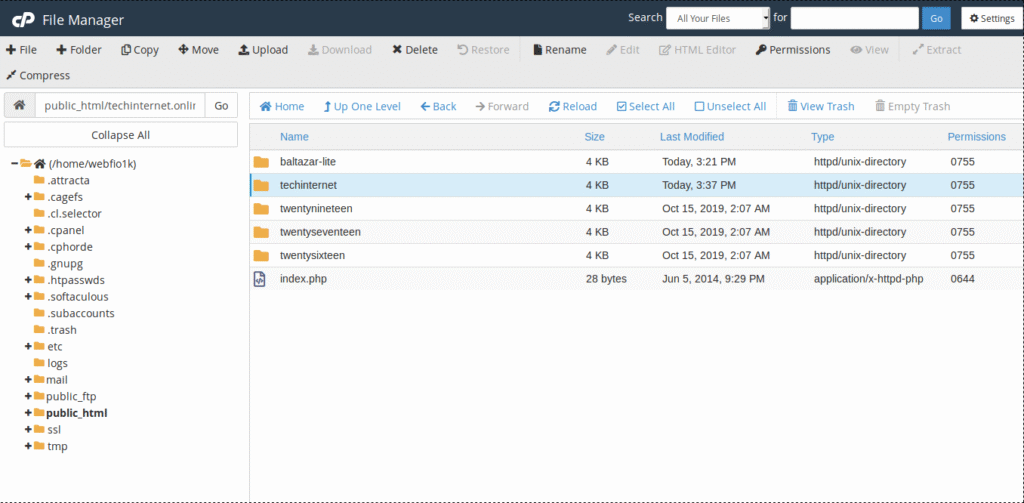
Make one folder in your theme folder as we make “techinternet.”

Step 2)

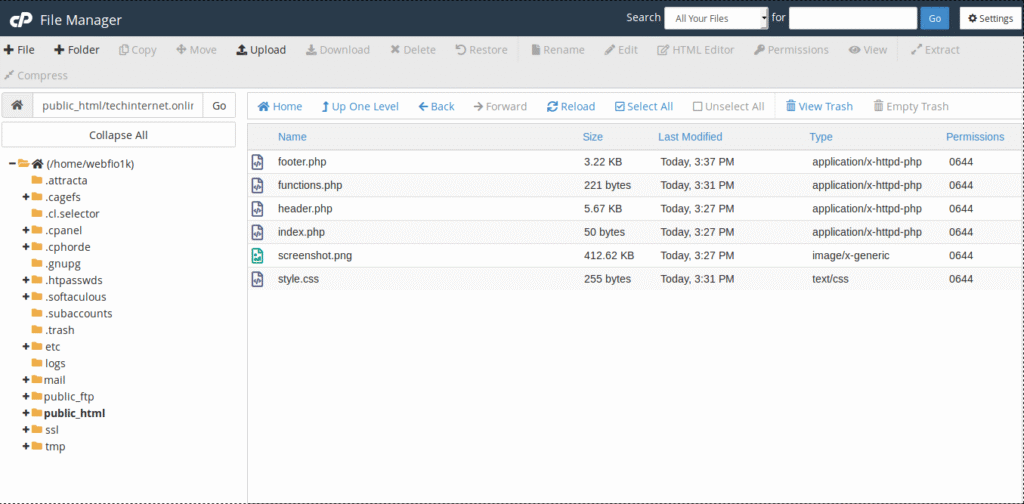
Copy files as displayed in the below image.

Step 3)

Open the style.css file and remove all code from that file and put the below code according to the change instruction and save it.

/*
Theme Name: Hashencrypted Child (change name as you like)
Theme URL: https://www.garudatechhub.com/ (change URL as your display)
Description: Techinternet WordPress Blog Theme (Set your description)
Author: Ravi Sukhadia (set author name here)
Author URL: https://www.garudatechhub.com/ (set author URL here)
Template: twenty-twelve (set your primary theme folder name here)
Version: 1.0.0 (set theme version here)
Text Domain: Hashencrypted-child (set child theme folder name here)
*/

Step 4)

Open the functions.php file and remove all code from that file and put the below code for taking your style in the child theme.

<?php
add_action( 'wp_enqueue_scripts', 'enqueue_parent_styles' );

function enqueue_parent_styles() {
   wp_enqueue_style( 'parent-style', get_template_directory_uri().'/style.css' );
}
?>

Step 5)

Now your child theme is ready. Go to the WordPress admin section and activate your child theme.

Register Custom Sidebar in WordPress

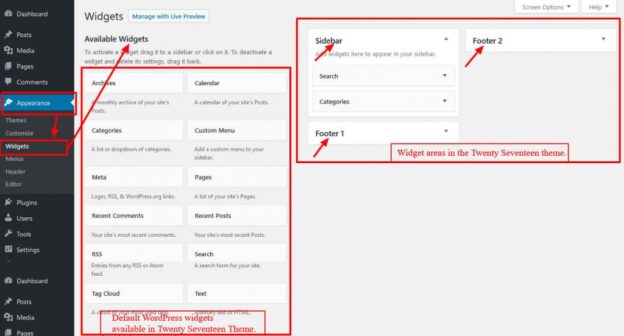
If you are new to WordPress and don’t know how to register the custom sidebar or how to get the custom sidebar value on any page, then simply follow the tutorial steps, and you can get your custom sidebar.

Step 1)

Copy the below code in your functions.php to register a new custom sidebar.

register_sidebar( array(
'id' => 'ID of your sidebar without space and special character',
'name' => 'Name of your sidebar without space and special character',
'description' => __( 'Enter Placeholder Text Here', 'text_domain' ),
) );

Step 2)

Now, you can view the sidebar in your wp-admin widget section.

Step 3)

If you need to get that new custom sidebar value in the wordpress pages then copy the below code with starting and ending of php code in your pages.

dynamic_sidebar( 'Your custom register sidebar id' );

Step 4)

Now if you put any widget inside the custom sidebar, it will display the widget where you put the code, which is defined in step 3.

How to Install wordpress?

If you are new to WordPress and don’t know how to install WordPress in your local system or live system, then follow the below steps and get a newly installed WordPress.

Download the Latest WordPress

You can download the latest WordPress version from this link. https://wordpress.org/download/

Step 1)

Abstract the zip where you need to set up the WordPress. If you need to set it up on your local server, then make a new folder, which is your project name, like “Blogging,” and put all the files and folders into the new folder from the abstract zip folder. If you need to set up a live server, then just copy all files and folders into the hosting panel from the abstract zip folder.

Step 2)

Now make one new empty database on your local or live system. like “blogging.”

Step 3)

Run the URL in the browser. If you set up your WordPress in the local server, then run the URL in the browser like “http://localhost/blogging.” If you set up your WordPress on the live server, then run the URL in the browser like “http://blogging.com.”

Step 4)

WordPress

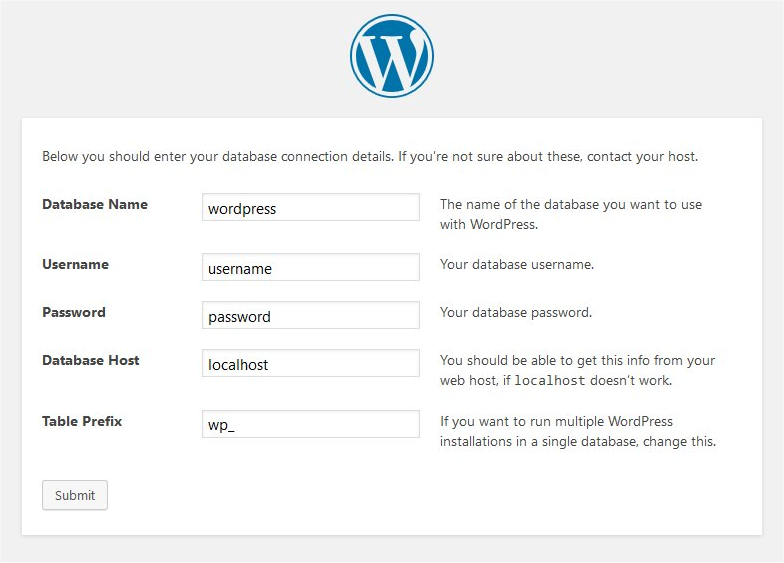
In your browser, you can see one form like the one below.

  • Enter your database name in the first field, which you make in the database, like “blogging.”
  • Enter your database username and password in the next two fields.
  • In the database host, if you use a local server, then put the hostname as it is; if you use a live server, then check your hostname from the database and insert that hostname in that field.
  • If you want another prefix, then you can enter it in the prefix section; otherwise, leave it as it is.
  • Submit the form, and you can get a new form as seen in step 5.

Step 5)

WordPress
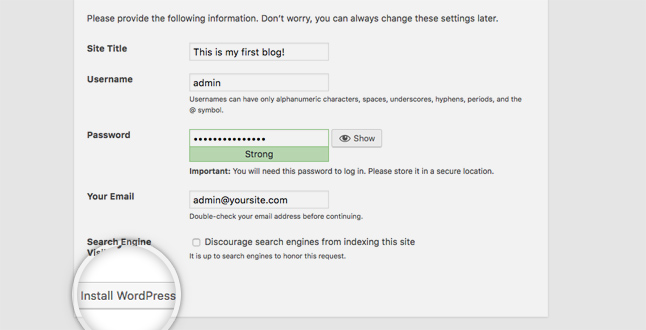
  • Now enter your website title.
  • Enter your username and password in the next two fields. which is your WordPress admin login access.
  • Enter your email address where you can get notifications from WordPress.
  • Click on the install WordPress button.

Step 6)

Now your WordPress is completed.