
Category Archives: PHP

Create Custom Register Page In WordPress

Here we will explain to you how to create a custom register page in WordPress. This tutorial will help for making the custom front-end page where your subscriber and author and many other roles of users will register themselves.

Step 1)

Make one template page in the WordPress active theme folder and put the below code there.

<?php
/*  Template Name: Register Template */
get_header();

function randomPassword() {
    $alphabet = "abcdefghijklmnopqrstuwxyzABCDEFGHIJKLMNOPQRSTUWXYZ0123456789";
    $pass = array(); //remember to declare $pass as an array
    $alphaLength = strlen($alphabet) - 1; //put the length -1 in cache
    for ($i = 0; $i < 8; $i++) {
        $n = rand(0, $alphaLength);
        $pass[] = $alphabet[$n];
    }
    return implode($pass); //turn the array into a string
}

$error= '';
$success = '';
global $wpdb, $PasswordHash, $current_user, $user_ID;
if(isset($_POST['task']) && $_POST['task'] == 'register' ) {

	$password1 = randomPassword();
	$first_name = $wpdb->escape(trim($_POST['first_name']));
	$last_name = $wpdb->escape(trim($_POST['last_name']));
	$email = $wpdb->escape(trim($_POST['email']));
	$username = $wpdb->escape(trim($_POST['username']));
	
	if( $email == "" || $username == "" || $first_name == "" || $last_name == "") {
		$error= 'Please don\'t leave the required fields.';
	} else if(!filter_var($email, FILTER_VALIDATE_EMAIL)) {
		$error= 'Invalid email address.';
	} else if(email_exists($email) ) {
		$error= 'Email already exist.';
	} else {
		$user_id = wp_insert_user( array ('first_name' => apply_filters('pre_user_first_name', $first_name), 'last_name' => apply_filters('pre_user_last_name', $last_name), 'user_pass' => apply_filters('pre_user_user_pass', $password1), 'user_login' => apply_filters('pre_user_user_login', $username), 'user_email' => apply_filters('pre_user_user_email', $email), 'role' => 'subscriber' ) );

		if( is_wp_error($user_id) ) {
			$error= 'Error on user creation.';
		} else {
			do_action('user_register', $user_id);
			$success = 'You\'re successfully register';

		}
	}
}
?>
<div class="wrapper">
 	<div class="choko_register_box">
		<form method="post" class="choko_register_form">
			<div class="choko_register_row_ctn">
				<label for="first_name">First Name<span>*</span>:</label>
				<input type="text" value="<?php if(isset($first_name)){echo $first_name;} ?>" name="first_name" id="first_name" />
			</div>
			<div class="choko_register_row_ctn">
				<label for="last_name">Last Name<span>*</span>:</label>
				<input type="text" value="<?php if(isset($last_name)){echo $last_name;} ?>" name="last_name" id="last_name" />
			</div>
			<div class="choko_register_row_ctn">
				<label for="username">Username<span>*</span>:</label>
				<input type="text" value="<?php if(isset($username)){echo $username;} ?>" name="username" id="username" />
			</div>	
			<div class="choko_register_row_ctn">
				<label for="email">Email<span>*</span>:</label>
				<input type="text" value="<?php if(isset($email)){echo $email;} ?>" name="email" id="email" />
			</div>
			<div class="choko_register_msg_ctn">
				<?php if($sucess != "") { echo "<div class='choko_register_success_msg'>".$sucess."</div>"; } ?> 
				<?php if($error!= "") { echo "<div class='choko_register_error_msg'>".$error."</div>"; } ?>
			</div>		
			<button type="submit" name="btnregister" class="button" >Register</button>
			<input type="hidden" name="task" value="register" />
		</form>
 	</div>
</div>
<?php get_footer() ?>
<style>
	.choko_register_box{margin: 0 auto;width: 50%;}
	.choko_register_row_ctn{margin-bottom: 15px;}
	.choko_register_row_ctn label{display: block;margin-bottom: 10px;}
	.choko_register_row_ctn input{width: 97%;border-radius: 0}
	.choko_register_error_msg{color: red;margin-bottom: 15px;}
</style>

Step 2)

Now make a register page in wp-admin/add new page. and select the “Register Template” as a template page. Update your page.

Step 3)

Now visit your page in the front end; it will display the custom register form.

How to Use .htaccess Rewrite Rules

If you want to customize your URL and get the best SEO tips for indexing and upping your website in search results in Google and Alexa search rankings, then simply use some of the tips below, which can get your URL for the best SEO purpose. We present some rules for your SEO URL.

Forcing https with SSL

RewriteCond %{HTTPS} !=on
RewriteRule (.*) https://%{HTTP_HOST}%{REQUEST_URI}

Creating a Vanity URL

RewriteRule ^promo123 /full-path/to-desired/page.html [R=301,L]

Whitelist IP Addresses

Order Deny,Allow
 Deny from all
 Allow from 182.237.14.39
 Allow from 182.237.14.40

Blacklist IP Addresses

Order allow,Deny
 Deny from 182.237.14.39
 Deny from 182.237.14.40
 Allow from all

301 Redirect all Non-primary URLs to Primary URL (https)

RewriteCond %{HTTP_HOST} !^domain\.com [NC]
RewriteRule (.*) https://domain.com/$1 [R=301,L]

Redirecting all URLs

Redirect 301 / https://example.com/

Automatically loading a subdirectory

RewriteEngine on
RewriteRule ^$ /subdir1/ [L]

Rewriting non-existing links to index.php

<IfModule mod_rewrite.c>
RewriteEngine On
RewriteBase /
RewriteRule ^index\.php$ - [L]
RewriteCond %{REQUEST_FILENAME} !-f
RewriteCond %{REQUEST_FILENAME} !-d
RewriteRule . /index.php [L]
</IfModule>

404 page redirect

ErrorDocument 404 http://example.com/404.php

DEFLATE

<IfModule mod_deflate.c>
# Compress HTML, CSS, JavaScript, Text, XML and fonts
 AddOutputFilterByType DEFLATE application/javascript
 AddOutputFilterByType DEFLATE application/rss+xml
 AddOutputFilterByType DEFLATE application/vnd.ms-fontobject
 AddOutputFilterByType DEFLATE application/x-font
 AddOutputFilterByType DEFLATE application/x-font-opentype
 AddOutputFilterByType DEFLATE application/x-font-otf
 AddOutputFilterByType DEFLATE application/x-font-truetype
 AddOutputFilterByType DEFLATE application/x-font-ttf
 AddOutputFilterByType DEFLATE application/x-javascript
 AddOutputFilterByType DEFLATE application/xhtml+xml
 AddOutputFilterByType DEFLATE application/xml
 AddOutputFilterByType DEFLATE font/opentype
 AddOutputFilterByType DEFLATE font/otf
 AddOutputFilterByType DEFLATE font/ttf
 AddOutputFilterByType DEFLATE image/svg+xml
 AddOutputFilterByType DEFLATE image/x-icon
 AddOutputFilterByType DEFLATE text/css
 AddOutputFilterByType DEFLATE text/html
 AddOutputFilterByType DEFLATE text/javascript
 AddOutputFilterByType DEFLATE text/plain
 AddOutputFilterByType DEFLATE text/xml
</IfModule>

GZIP

<IfModule mod_gzip.c>
mod_gzip_on Yes
mod_gzip_dechunk Yes
mod_gzip_item_include file \.(html?|txt|css|js|php|pl)$
mod_gzip_item_include handler ^cgi-script$
mod_gzip_item_include mime ^text/.*
mod_gzip_item_include mime ^application/x-javascript.*
mod_gzip_item_exclude mime ^image/.*
mod_gzip_item_exclude rspheader ^Content-Encoding:.*gzip.*
</IfModule>

Expires headers

<IfModule mod_expires.c>
# Enable expirations
ExpiresActive On
# Default expiration: 1 hour after request
ExpiresDefault "now plus 1 hour"
# CSS and JS expiration: 1 week after request
ExpiresByType text/css "now plus 1 week"
ExpiresByType application/javascript "now plus 1 week"
ExpiresByType application/x-javascript "now plus 1 week"
# Image files expiration: 1 month after request
ExpiresByType image/bmp "now plus 1 month"
ExpiresByType image/gif "now plus 1 month"
ExpiresByType image/jpeg "now plus 1 month"
ExpiresByType image/jp2 "now plus 1 month"
ExpiresByType image/pipeg "now plus 1 month"
ExpiresByType image/png "now plus 1 month"
ExpiresByType image/svg+xml "now plus 1 month"
ExpiresByType image/tiff "now plus 1 month"
ExpiresByType image/vnd.microsoft.icon "now plus 1 month"
ExpiresByType image/x-icon "now plus 1 month"
ExpiresByType image/ico "now plus 1 month"
ExpiresByType image/icon "now plus 1 month"
ExpiresByType text/ico "now plus 1 month"
ExpiresByType application/ico "now plus 1 month"
# Webfonts
ExpiresByType font/truetype "access plus 1 month"
ExpiresByType font/opentype "access plus 1 month"
ExpiresByType application/x-font-woff "access plus 1 month"
ExpiresByType image/svg+xml "access plus 1 month"
ExpiresByType application/vnd.ms-fontobject "access plus 1 month"
</IfModule>

Cache-Control

<ifModule mod_headers.c>
 <filesMatch "\.(ico|jpe?g|png|gif|swf)$">Header set Cache-Control "public"</filesMatch>
 <filesMatch "\.(css)$">Header set Cache-Control "public"</filesMatch>
 <filesMatch "\.(js)$">Header set Cache-Control "private"</filesMatch>
 <filesMatch "\.(x?html?|php)$">Header set Cache-Control "private, must-revalidate</filesMatch>
</ifModule>

Enable Keep Alive

<ifModule mod_headers.c>
Header set Connection keep-alive
</ifModule>

Enable mod_pagespeed

<IfModule pagespeed_module>
ModPagespeed on
ModPagespeedEnableFilters rewrite_css,combine_css
ModPagespeedEnableFilters recompress_images
ModPagespeedEnableFilters convert_png_to_jpeg,convert_jpeg_to_webp
ModPagespeedEnableFilters collapse_whitespace,remove_comments
</IfModule>

Wrapping It Up

ServerSignature Off

Disable Image Hotlinking

RewriteEngine on
RewriteCond %{HTTP_REFERER} !^$
RewriteCond %{HTTP_REFERER} !^http(s)?://(www\.)?sample.com [NC]
RewriteCond %{HTTP_REFERER} !^http(s)?://(www\.)?google.com [NC]
RewriteRule \.(jpg|jpeg|png|gif)$ – [NC,F,L]

How to Create a WordPress Child Theme?

You want to make a child theme in your WordPress platform and don’t know how to make the child theme in WordPress. Then follow the tutorial step, and you can get your WordPress child theme in a few minutes. It’s a simple tutorial that can give you a better solution.

Step 1)

Make one folder in your theme folder as we make “techinternet.”

Step 2)

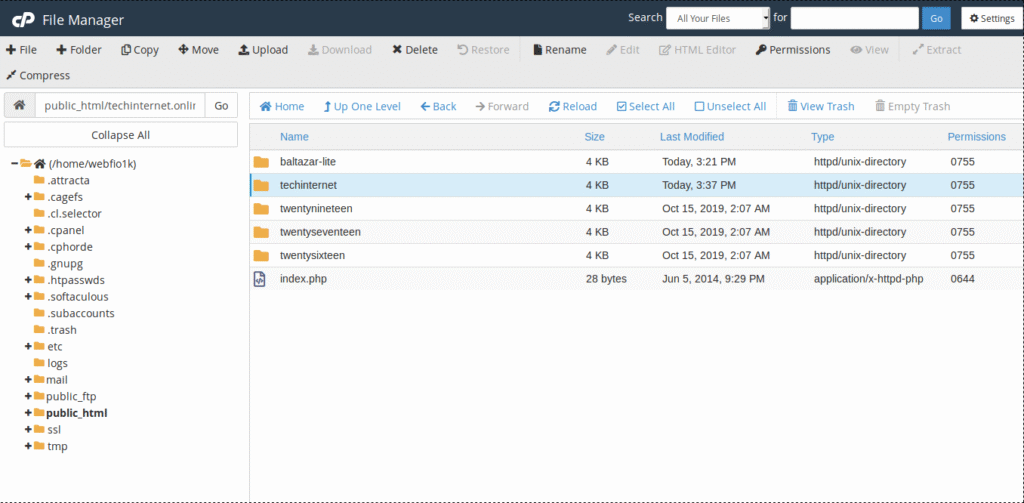
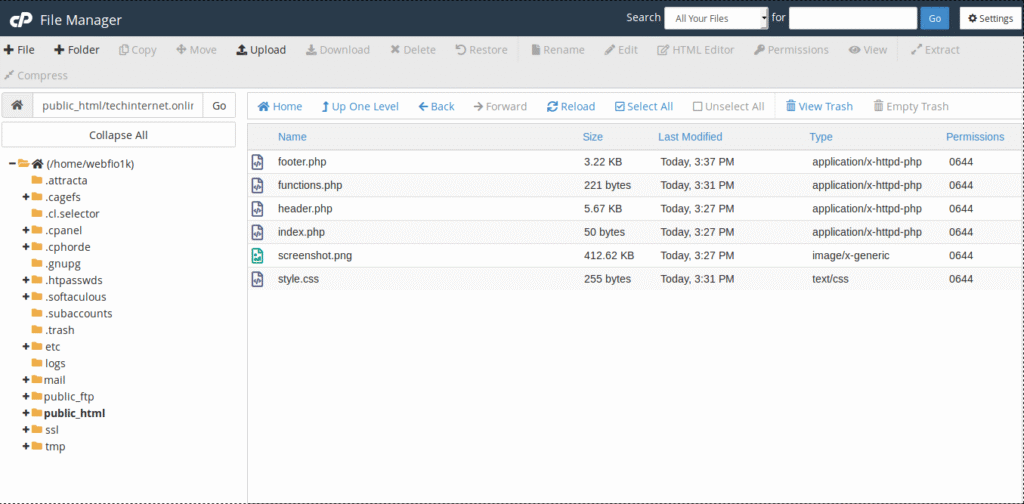
Copy files as displayed in the below image.

Step 3)

Open the style.css file and remove all code from that file and put the below code according to the change instruction and save it.

/*
Theme Name: Hashencrypted Child (change name as you like)
Theme URL: https://www.garudatechhub.com/ (change URL as your display)
Description: Techinternet WordPress Blog Theme (Set your description)
Author: Ravi Sukhadia (set author name here)
Author URL: https://www.garudatechhub.com/ (set author URL here)
Template: twenty-twelve (set your primary theme folder name here)
Version: 1.0.0 (set theme version here)
Text Domain: Hashencrypted-child (set child theme folder name here)
*/

Step 4)

Open the functions.php file and remove all code from that file and put the below code for taking your style in the child theme.

<?php
add_action( 'wp_enqueue_scripts', 'enqueue_parent_styles' );

function enqueue_parent_styles() {
   wp_enqueue_style( 'parent-style', get_template_directory_uri().'/style.css' );
}
?>

Step 5)

Now your child theme is ready. Go to the WordPress admin section and activate your child theme.

Register Custom Sidebar in WordPress

If you are new to WordPress and don’t know how to register the custom sidebar or how to get the custom sidebar value on any page, then simply follow the tutorial steps, and you can get your custom sidebar.

Step 1)

Copy the below code in your functions.php to register a new custom sidebar.

register_sidebar( array(
'id' => 'ID of your sidebar without space and special character',
'name' => 'Name of your sidebar without space and special character',
'description' => __( 'Enter Placeholder Text Here', 'text_domain' ),
) );

Step 2)

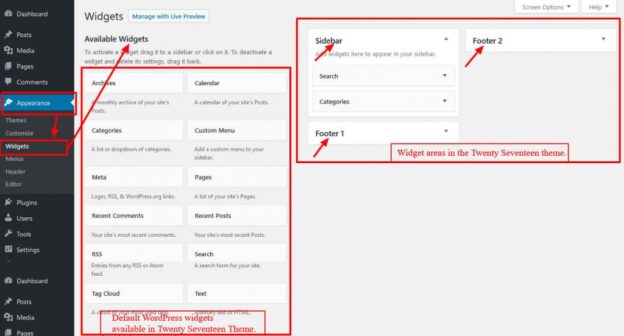
Now, you can view the sidebar in your wp-admin widget section.

Step 3)

If you need to get that new custom sidebar value in the wordpress pages then copy the below code with starting and ending of php code in your pages.

dynamic_sidebar( 'Your custom register sidebar id' );

Step 4)

Now if you put any widget inside the custom sidebar, it will display the widget where you put the code, which is defined in step 3.

How to set default editor in FileZilla?

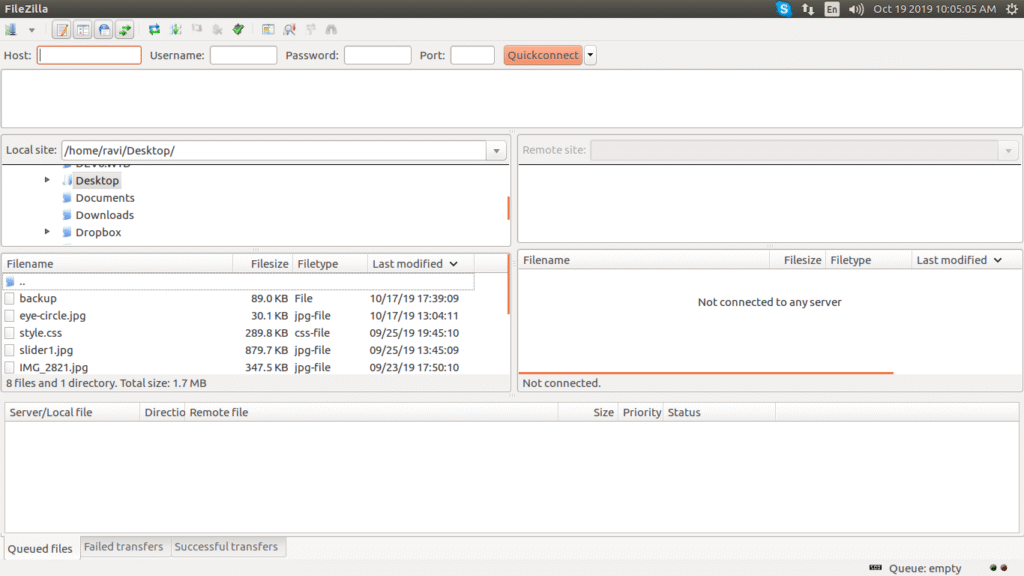
You have no idea how to set up the default editor in FileZilla; when you view/edit a page, then simply use this tutorial. You want to set up a default editor for your FileZilla, then follow the below steps.

Step 1)

Open FileZilla.

Step 2)

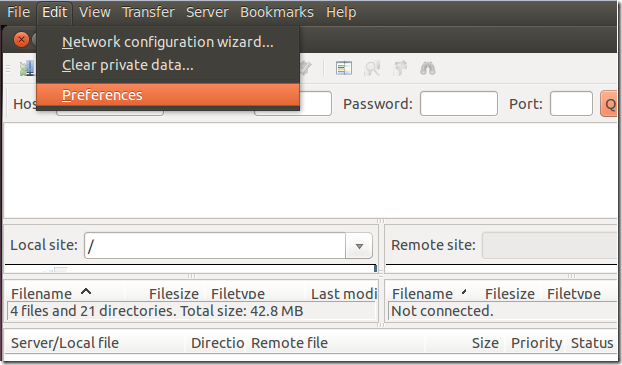
Open the edit menu -> preference from the top left corner.

Step 3)

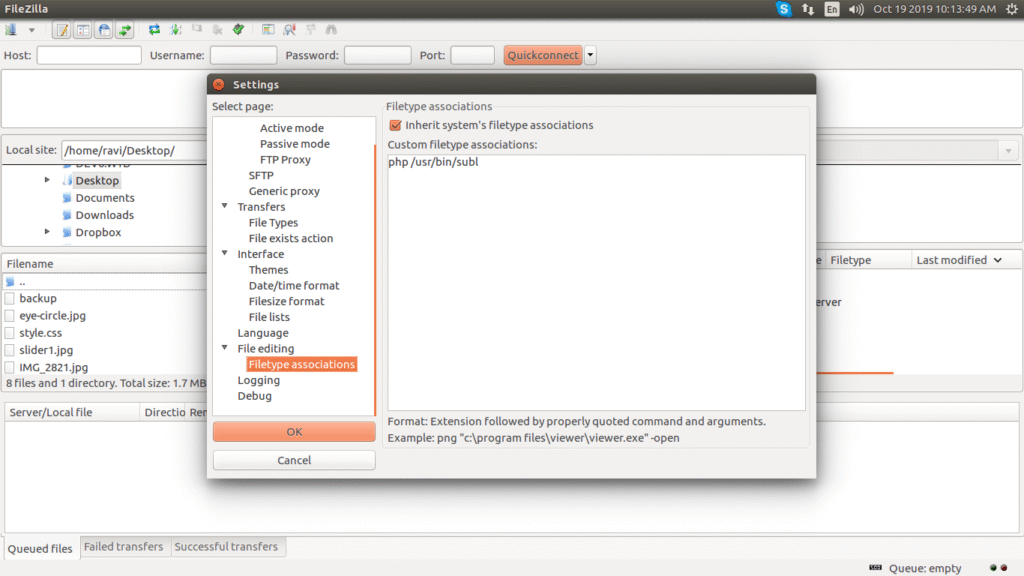
Open the “Filetype associations” and copy and paste the code as below if you use Sublime as the default editor.

“php /usr/bin/subl”

If you use another editor like NetBeans, Dream Viewer, or Notepad++, then you need to find their extension and set it in the “Filetype associations.” so your default files will open in that software.

How to get your paypal API details?

If you don’t know how to get the PayPal API details for integrating PayPal with your system, then simply follow the tutorial steps, and you can get the details of your PayPal API. This tutorial will help you to find your details.

Step 1)

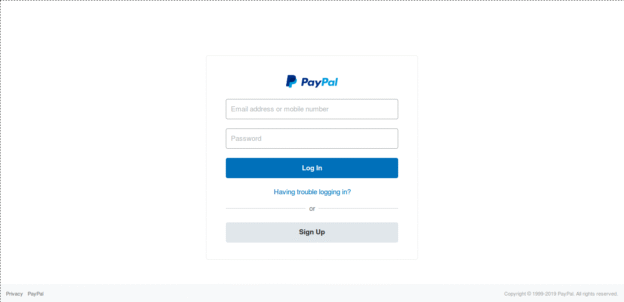
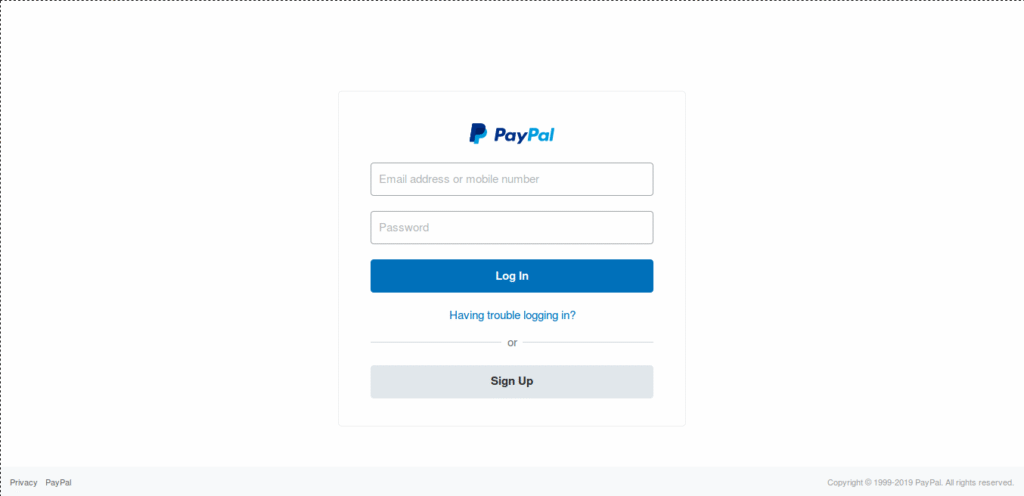
Log in with your PayPal account.

Step 2)

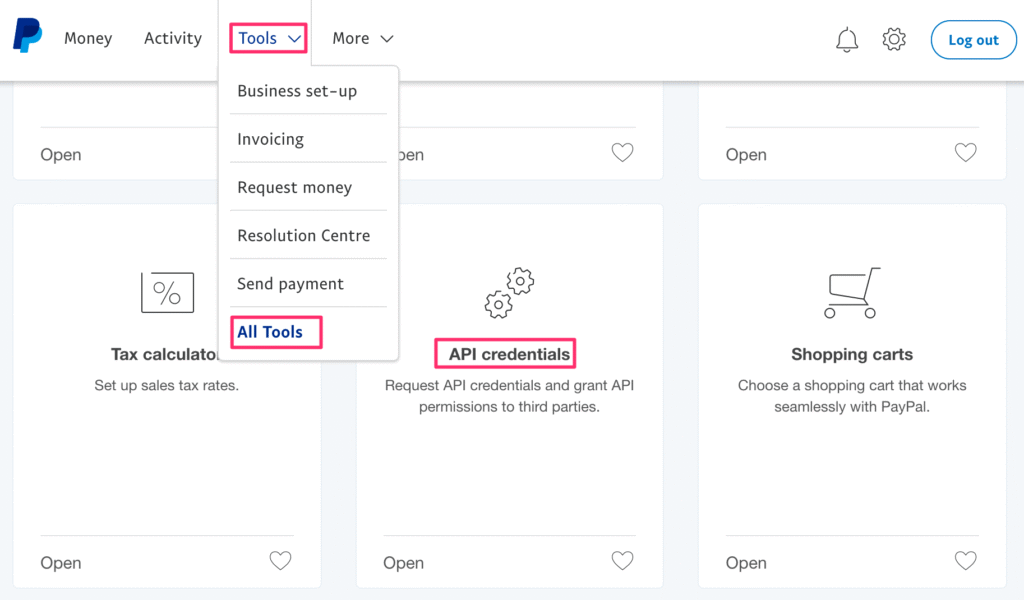
Move your mouse over the Tools menu in the top navigation. Find more tools within that. And click it. Scroll the page or search API credentials till you see a box with API credentials written. Click on it.

Step 3)

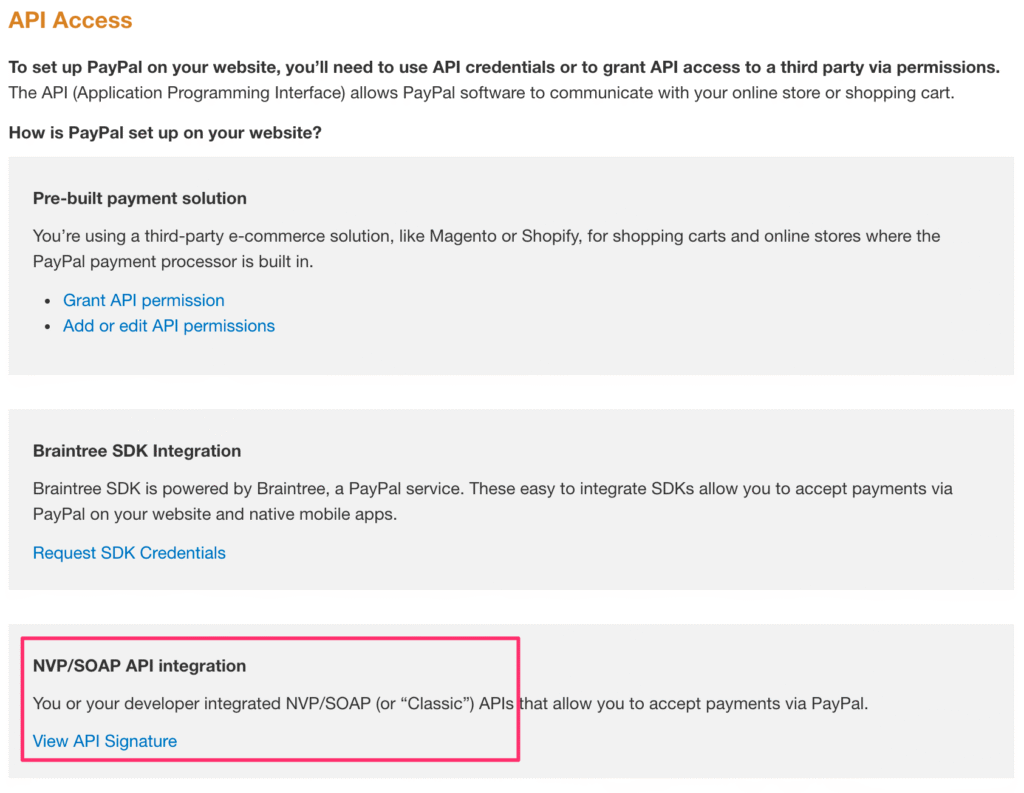
Once on the API credentials page, click on the last option for NVP/SOAP API integration.

If this is the first time you are creating API credentials, complete the API Credential Request form.

Step 4)

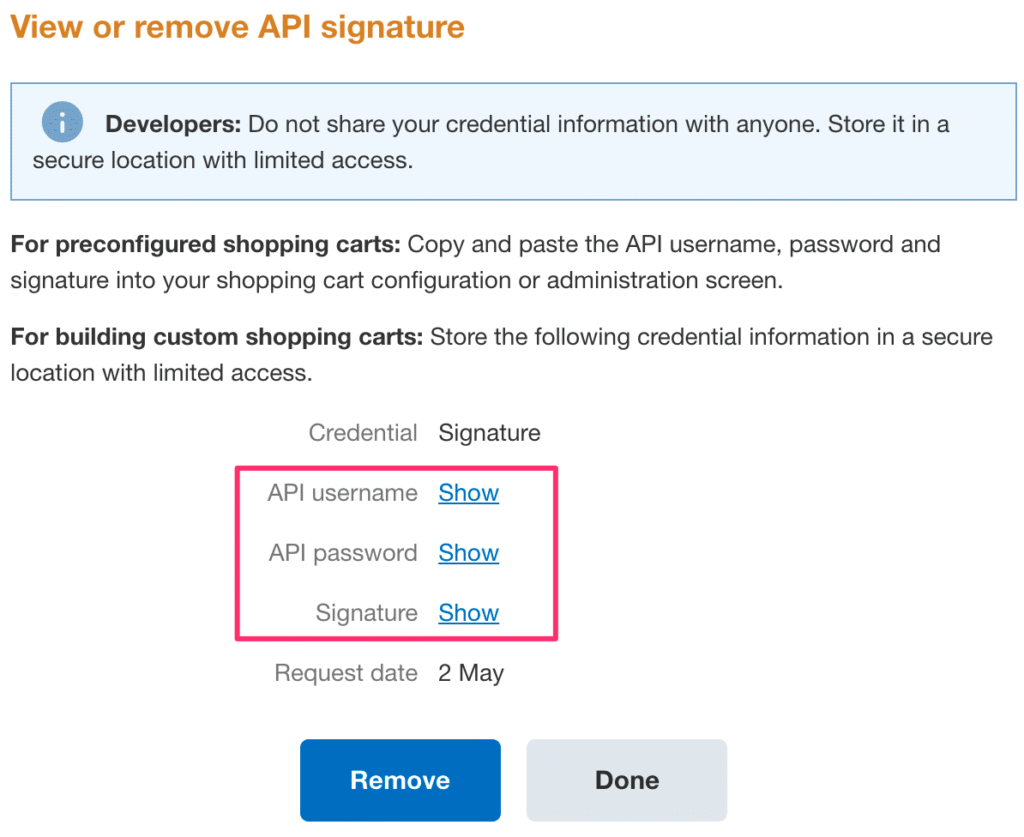
Once you’ve created the API credentials, you will see the View API Signature option under NVP/SOAP API integration. Clicking on that will bring you to a page like the following screenshot. Click on each “Show” link to see the API username, password, and signature.

HTTP Headers for ZIP File Downloads

This tutorial will help you with generating zip files and directly downloading them to your system. So just follow the step, and you can get the zip file downloadable using the PHP code. This zip generates code that will be used on all systems, like Mac, Ubuntu, Windows, etc., with a different browser.

Step 1)

Copy the code below into your PHP file.

<?php 

$filename = "Inferno.zip";
$filepath = "/var/www/domain/httpdocs/download/path/";

header("Pragma: public");
header("Expires: 0");
header("Cache-Control: must-revalidate, post-check=0, pre-check=0");
header("Cache-Control: public");
header("Content-Description: File Transfer");
header("Content-type: application/octet-stream");
header("Content-Disposition: attachment; filename=\"".$filename."\"");
header("Content-Transfer-Encoding: binary");
header("Content-Length: ".filesize($filepath.$filename));
ob_end_flush();
@readfile($filepath.$filename);
ob_clean();
flush();
readfile($file);
ob_clean();
flush();
exit; 
?>

Step 2)

Now run the URL in your browser, where you can directly download the zip file.

How to integrate PayPal in your PHP website?

You are not aware of the PayPal payment gateway, and you need to integrate PayPal into your PHP website; then this tutorial will help you with how to integrate PayPal into the PHP website. No need to work with the hard code; just simply follow the below steps, and you can get PayPal working in your PHP website.

Step 1)

Click Here for download the PayPal standard code for PHP.

Step 2)

If you need to work with the live account, then set the below URL in your form action.

https://www.paypal.com

If you need to work with the sandbox account, then set the below URL in your form action.

https://www.sandbox.paypal.com/cgi-bin/webscr

Step 3)

Now you need to set your PayPal email to the business input fields.

Also set the notify URL, return URL, and cancel URL of your website. where the page will redirect after the action call.

Step 4)

When you follow the above steps successfully, then you can get PayPal working in your PHP website.

Convert HTML to Ms Word Using Php Script

In this tutorial, you can learn about how to convert text or export HTML to Microsoft Word file format by using PHP programming. If you develop any web application, and in that application, you want to add one feature, like you want to create a Word document from your PHP web application, then at that time you can use this PHP tutorial script for exporting HTML text to Microsoft Word. You can also format the word file from HTML code by putting a simple HTML tag, and you can also use an inline style sheet to change the color, increase the font size, etc.

Step 1)

Create a new PHP file like “example.php” and put the below code inside that file with PHP starting and ending code.

header(“Content-type: application/vnd.ms-word”);

header(“Content-Disposition: attachment; Filename=SaveAsWordDoc.doc”);

$html = "<meta charset="utf-8">
<title>A simple, clean, and responsive HTML export to Ms Word</title>
<style>body {height: 297mm;width: 210mm;margin: 0 auto;font-size: 10pt;line-height: 10pt;font-family:  Times New Roman, Arial, sans-serif;color: #000;}</style>
<form>
<table style="width:210mm;" width="100%" cellspacing="0" cellpadding="5" border="0">
<tbody>
<tr>
<td>REF No: 123456</td>
</tr>
<tr>
<td><strong>Date: 24 October 2019 </strong></td>
</tr>
<tr>
<td>Dear USER NAME</td>
</tr>
<tr>
<td></td>
</tr>
<tr>
<td>
<table width="100%" cellspacing="0" cellpadding="5" border="0">
<tbody>
<tr>
<td width="30">
<div style="border: solid 1px #000; margin: 2pt; float: left;">&amp;</div></td>
<td>USER data.</td>
</tr>
</tbody>
</table>
</td>
</tr>
</tbody>
</table>
</form>";
echo $html;

Step 2)

Now you can run this file in your browser. You can get your HTML or text in an MS Word file. This will be supported in each and every browser.

How to Work Mpdf Workable in Php 7 ?

If you use an old version of PHP in your local system and you integrate the mpdf in that old version. After you change your PHP version to the latest version and mPDF is not working, then simply follow our below steps, and you will get the mPDF working in your latest PHP version.

Step 1)

Click here to download the mPDF.

Step 2)

Include the mPDF.

require_once _DIR_ . ‘/MPDF/vendor/autoload.php’;

Instead of

require_once( ‘mpdf/mpdf.php’);

Step 3)

Just change your code to

$html = "Your html code here";
$mpdf = new \Mpdf\Mpdf(['mode' => 'utf-8', 'format' => 'A4','0','',0,0,0,0,'margin_header' => 0,'orientation' => 'P']);
$mpdf->setAutoTopMargin = 'stretch';
$mpdf->setAutoBottomMargin = 'stretch';
$mpdf->WriteHTML($html);
$mpdf->Output();
exit;

Instead of

$html = "Your html code here";
$mpdf=new mPDF('utf-8', 'A4', 0, '', 0, 0, 0, 0, 0, 'P');
$mpdf->setAutoTopMargin = 'stretch';
$mpdf->setAutoBottomMargin = 'stretch';
$mpdf->WriteHTML($stylesheet, 1);
$mpdf->WriteHTML($html);
$mpdf->Output();

Step 4)

Now your mPDF is working in PHP 7 and above versions.