Category Archives: Core PHP

How to get image from youtube and vimeo embedded url?

This tutorial is for getting the image from YouTube and Vimeo embedded URLs using the PHP code without any 3rd party tools. You can just enter the embedded URL in the below code and get an HD image from these two platforms.

Step 1)

Just put this code in your PHP file where you want to get the YouTube and Vimeo embedded URL image in high resolution.

$url2 = "Your youtube and vimeo embedded url here";
$parsed     = parse_url($url2);
$hostname   = $parsed['host']; 
$path       = $parsed['path']; 
if(!empty($hostname)){
  if($hostname=='www.youtube.com' || $hostname=='youtube.com'){
	preg_match('%(?:youtube(?:-nocookie)?\.com/(?:[^/]+/.+/|(?:v|e(?:mbed)?)/|.*[?&]v=)|youtu\.be/)([^"&?/ ]{11})%i', $url2, $match);
	$youtube_id = $match[1];
        $videoID = substr($youtube_id,0,11);
        $video_image_src = "https://i.ytimg.com/vi/".$videoID."/maxresdefault.jpg";
	$video_image_href = "https://www.youtube.com/embed/".$videoID;
}else if($hostname=='player.vimeo.com'){
	preg_match("/vimeo\.com\/(\w+\s*\/?)*([0-9]+)*$/i", $url2, $output_array);
	$vimdeoIDInt = intval($output_array[1]);
	$vimeo = unserialize(file_get_contents("http://vimeo.com/api/v2/video/$vimdeoIDInt.php"));
	$small = $vimeo[0]['thumbnail_small'];
	$medium = $vimeo[0]['thumbnail_medium'];
	$large = $vimeo[0]['thumbnail_large'];
        $video_image_src = $large;
	$video_image_href = "https://player.vimeo.com/video/".$vimdeoIDInt; 
 }
echo $video_image_href;
}

Add Forfully Redirect http to https using php code without .htaccess

This tutorial is for redirecting the http URL to https using the PHP code if your .htaccess will not work for the SSL. It will just redirect all your HTTP URLs to HTTPS without using the .htaccess if your server HTTPS is not on. Just follow the step, and you can get your own redirection.

Step 1)

Just put this code in your main root file or connection file, which is included everywhere inyour project. So every time a URL is scanned with this code, if it finds the http, it will convert it into https.

if (!(isset($_SERVER['HTTPS']) && ($_SERVER['HTTPS'] == 'on' || 
   $_SERVER['HTTPS'] == 1) ||  
   isset($_SERVER['HTTP_X_FORWARDED_PROTO']) &&   
   $_SERVER['HTTP_X_FORWARDED_PROTO'] == 'https'))
{
   $redirect = 'https://' . $_SERVER['HTTP_HOST'] . $_SERVER['REQUEST_URI'];
   header('HTTP/1.1 301 Moved Permanently');
   header('Location: ' . $redirect);
   exit();
}

How to Generate Image from html using js?

This tutorial is about generating the image from the HTML. You can just create the HTML and put this code after your code, and it will generate the image from your HTML. Below is the easy step to generate the image from custom HTML.

Step 1)

Create one PHP file like index.php as below.

<meta charset="UTF-8">
<meta name="viewport" content="width=device-width, initial-scale=1.0">
<title>Html To Image</title>
<script src="https://ajax.googleapis.com/ajax/libs/jquery/1.11.2/jquery.min.js"> </script>
<script src="https://files.codepedia.info/files/uploads/iScripts/html2canvas.js"> </script>
<div class="bingo-box bingo-green generatedata" id="generatedata1" data-id="1">
<div class="number-row number-row1">
<div class="number number1">1</div>
<div class="number number2">2</div>
<div class="number number4">4</div>
<div class="number number5">5</div>
<div class="number number5">9</div>
</div>
</div>
<script>
        $(document).ready(function() {
            var getCanvas;
            $( ".generatedata" ).each(function( index ) {
                var dataid = $( this ).attr("id");
                var catid = $( this ).data("id");
                var datafid = parseInt(index) + parseInt(1);
                var element = $("#"+dataid);
                html2canvas(element, {
                    onrendered: function(canvas) {
                        getCanvas = canvas;
                        var imgageData = getCanvas.toDataURL("image/png");
                        var newData = imgageData.replace(/^data:image\/png/, "data:application/octet-stream");
                        $.ajax({
                          type: "POST",
                          url: "upload.php",
                          data: {
                             imgBase64: newData
                          }
                        }).done(function(o) {
                          console.log('saved');
                        });
                    }
                });
            });
        });
    </script>

Create another page like upload.php

<?php
$catid = $_POST['catid'];
$folderPath = "upload_img/";
$image_parts = explode(";base64,", $_POST['imgBase64']);
$image_type_aux = explode("image/", $image_parts[0]);
$image_type = $image_type_aux[1];
$image_base64 = base64_decode($image_parts[1]);
$filename = uniqid() . '.png';
$file = $folderPath . $filename;
file_put_contents($file, $image_base64);
?>

Step 3)

Now Just run the index.php file in your browser; this will generate the image in the folder.

Integrate Stripe API using php

If you need to integrate the Stripe API into your PHP project, then follow this tutorial, which can create/edit/update/delete charges, customers, subscriptions, plans, payments, cards, and many more. Just simply follow this step, and you can get your API working.

Step 1)

NOTE* : For this API integration, you need to enable the below modules in your Apache or live server.

  • curl, although you can use your own non-cURL client if you prefer
  • json
  • mbstring (Multibyte String)

Download the library from the official Stripe website and upload this Stripe demo library to your project.

Step 2)

Now make one test.php file to create a customer in Stripe using the API in PHP and include the below code in that file and save the file.

require_once('strip-demo/vendor/autoload.php');
$stripe = new \Stripe\StripeClient(<ENTER STRIPE KEY HERE>);
$customer = $stripe->customers->create('description' => '<CUSTOMER DESCRIPTION>','email' => "<CUSTOMER EMAIL ADDRESS>",'name' => "<CUSTOMER NAME>",
]);
$id=$customer->id;
print_r($customer); //get response from stripe when customer created in stripe
            
    $stripe = new \Stripe\StripeClient(<ENTER STRIPE KEY HERE>);
    $option = array("object" => 'card', "number" => "<CUSTOMER CARD NUMBER>","exp_month" => "CUSTOMER CARD MONTH","exp_year" => "<CUSTOMER CARD YEAR>","cvc" => "<CUSTOMER CARD CVV>");
    $card = $stripe->customers->createSource(
        $id,['source' => $option]);
        print_r($card_id); //get response from stripe when card created in stripe for specific user

    $data = $stripe->charges->create([
               'amount' => "1.00",
               'customer' => $id,
               'currency' => 'usd',
               'description' => 'Total Subscription Charges',
   ]);

print_r($data); //get response from stripe when charges created in stripe for specific user

Step 3)

Finally, run this test.php file in your system; it will send the data to your Stripe. For more API, visit this link: https://stripe.com/docs/api

How to implement firebase push notification in android and iphone

If you need to send a Firebase notification using PHP, then simply use these tutorials, which can help you send the notification to Android and iPhone devices. Basically there is a GCM (Google Cloud Messaging), which is sending the notification, but now Google has launched Firebase Cloud Messaging (FCM).

Step 1)

Generate the Firebase Server Key. For this you need to follow the below steps.

  • Log in to the Firebase Developer Console, and if you haven’t created a project yet, click “Create Project.”
  • Enter a project name, accept the Firebase terms, and press “CREATE PROJECT.”
  • Does it set up Google Analytics for your project? Select “Not Right Now” and press “CREATE PROJECT.”
  • The project will be created, and you will get the message “Your new project is ready.” Press the “Continue” button to redirect to your project dashboard page.
  • On the dashboard page, click the gear icon in the top left and select “Project settings.”
  • Go to the “Cloud Messaging Section” section, and you will have the server key.
  • Done! I hope you successfully generate a Firebase server key.

Step 2)

Create a file named fcm.php and add the below push notification PHP code. Be sure to replace the Your Firebase Server API Key Here with a proper one from the Google API’s Console page.

<?php
class FCM {
    function __construct() {
    }
   /**
    * Sending Push Notification
   */
  public function send_notification($registatoin_ids, $notification,$device_type) {
      $url = 'https://fcm.googleapis.com/fcm/send';
      if($device_type == "Android"){
            $fields = array(
                'to' => $registatoin_ids,
                'data' => $notification
            );
      } else {
            $fields = array(
                'to' => $registatoin_ids,
                'notification' => $notification
            );
      }
      // Firebase API Key
      $headers = array('Authorization:key=Your Firebase 
Server API Key Here','Content-Type:application/json');
     // Open connection
      $ch = curl_init();
      // Set the url, number of POST vars, POST data
      curl_setopt($ch, CURLOPT_URL, $url);
      curl_setopt($ch, CURLOPT_POST, true);
      curl_setopt($ch, CURLOPT_HTTPHEADER, $headers);
      curl_setopt($ch, CURLOPT_RETURNTRANSFER, true);
      // Disabling SSL Certificate support temporarly
      curl_setopt($ch, CURLOPT_SSL_VERIFYPEER, false);
      curl_setopt($ch, CURLOPT_POSTFIELDS, json_encode($fields));
      $result = curl_exec($ch);
      if ($result === FALSE) {
          die('Curl failed: ' . curl_error($ch));
      }
      curl_close($ch);
  }
}   
?>

Step 3)

Finally, create an index.php and add the below code. Before testing, please replace your device token with your real device token.

<?php
$regId ="Your Device Token";

// INCLUDE YOUR FCM FILE
include_once 'fcm.php';    

$notification = array();
$arrNotification= array();			
$arrData = array();											
$arrNotification["body"] ="Test by Ravi Sukhadia.";
$arrNotification["title"] = "TECHIBUCKET";
$arrNotification["sound"] = "default";
$arrNotification["type"] = 1;

$fcm = new FCM();
$result = $fcm->send_notification($regId, $arrNotification,"Android");
?>

Step 4)

Send Push Notification to iOS Using PHP. You just need to change “Android” to “IOS” in your index.php file. like below…

FOR ANDROID

$result=$fcm->send_notification($regId,$arrNotification,"Android");

FOR IPHONE

$result=$fcm->send_notification($regId, $arrNotification,"IOS");

Step 5)

Now run your index.php file, and you can get the notification on your devices.

Implement PHP mailer with smtp authentication

This tutorial is for implementing the PHP mailer with SMTP authentication. You can set SMTP authentication mail to your website using this. So simply follow the setup, and you can get working SMTP authentication mail.

Step 1)

Download the PHP mailer library from here. click here for download

Step 2)

Make a function for sending mail as below.

<?php 
use PHPMailer\PHPMailer\PHPMailer;
use PHPMailer\PHPMailer\Exception;
require 'PHPMailer/src/PHPMailer.php';
require 'PHPMailer/src/SMTP.php';
require 'PHPMailer/src/Exception.php';
$mail = new PHPMailer(true); // Passing `true` enables exceptions 
try { 
//Server settings 
$mail->SMTPDebug = 2; // Enable verbose debug output
$mail->isSMTP(); // Set mailer to use SMTP
$mail->Host = ''; // Specify main and backup SMTP servers
$mail->SMTPAuth = true; // Enable SMTP authentication
$mail->Username = "";
$mail->Password = "";
$mail->SMTPSecure = 'tls'; // Enable SSL encryption, TLS also accepted with port 465
$mail->Port = 587; // TCP port to connect to 
$mail->SMTPOptions = array(
    'ssl' => array(
        'verify_peer' => false,
        'verify_peer_name' => false,
        'allow_self_signed' => true
    )
);
//Recipients 
$mail->setFrom('Your SMTP Email Address', 'Your SMTP User Name'); //This is the email your form sends From 
$mail->addAddress('Your User Email Address', 'Your User Name'); // Add a recipient address
//Content 
//$mail->isHTML(true); // Set email format to HTML 
$mail->Subject = 'Your Subject';
$htmldata = "<html>
           <head>
           <title>Title Here</title>
           </head>
           <body>HTML Content</body></html>";
           $mail->IsHTML(true);          
$mail->Body = $htmldata; 
$mail->send(); echo 'Message has been sent'; 
} catch (Exception $e) { echo 'Message could not be sent.'; 
echo 'Mailer Error: ' . $mail->ErrorInfo;
}
?>

Step 3)

Now use the above function to send the SMTP authentication mail via SMTP.

Import data from excel file to php database

You have an Excel file, and if you want to import that Excel file to your database, then fetch the cell value using these tutorials. You can directly import to your MySQL, MS SQL, and various databases using this library and tutorials. Just download the library and integrate the below code there.

Step 1)

Download the Excel read library from here. click here for download

Step 2)

Make a form for uploading your Excel file as below.

<html>
<body>
    <form method="post" enctype="multipart/form-data">
        <table>
            <tr>
                <td>
                    Select File:
                </td>
                <td>
                    <input type="file" name="file" id="file">
                </td>
            </tr>
            <tr>
                <td colspan="2" align="left">
                    <input type="submit" name="submit" value="Submit">
                </td>
            </tr>
        </table>
    </form>
</body>
</html>

Step 3)

Now make code to read the Excel file cell and import it to the database as below.

<?php
include('PHPExcel-1.8/Classes/PHPExcel/IOFactory.php');

if(isset($_POST["submit"]))
{
	$inputFileName = $_FILES["file"]["tmp_name"];

	try {
		$inputFileType = PHPExcel_IOFactory::identify($inputFileName);
		$objReader = PHPExcel_IOFactory::createReader($inputFileType);
		$objPHPExcel = $objReader->load($inputFileName);
	} catch (Exception $e) {
		die('Error loading file "' . pathinfo($inputFileName, PATHINFO_BASENAME) . '": ' . 
		$e->getMessage());
	}

	$sheet = $objPHPExcel->getSheet(0);
	$highestRow = $sheet->getHighestRow();
	$highestColumn = $sheet->getHighestColumn();

	$newArr = array();
	for($row = 1; $row <= $highestRow; $row++) { 
		$rowData = $sheet->rangeToArray('A' . $row . ':' . $highestColumn . $row, null, true, false);

		array_push($newArr, $rowData);
	}

    echo "<pre>";
    print_r($newArr);
	
    echo "Record Update Successfully...";
}
?>

Step 4)

Now upload your Excel to the form and submit the Excel; it will return you all the cell values, which you will insert into your database.

How to repeat the header on every page in mpdf ?

If you want to add a header in your custom mPDF and repeat the header for every page in the mPDF, then simply put the below code in your code, and you can get the dynamic header in your generated PDF.

Step 1)

Put the below code in your mPDF.

<htmlpageheader>
             {Header title}
</htmlpageheader>
<sethtmlpageheader name="MyHeader1" value="on" show-this-page="0" />

How to implement captcha in php?

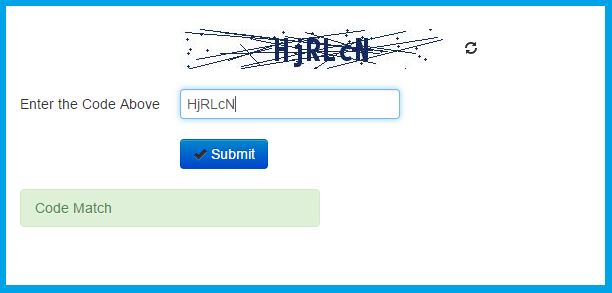
This is the tutorial that can implement the captcha in the PHP form and verify whether the user is a real user or a robot user. So just make the below files and set them to your form, which can attach the captcha.

Step 1)

Make a PHP file and put the below code there.

<div>
     <img src="captcha_code.php"/>
     <input name="captcha_code" type="text" id="captcha_code" placeholder="Enter Captcha Code">
</div>

Step 2)

Make another file named “captcha_code.php.” Put the below code in that file.

<?php
session_start();
$random_alpha = md5(rand());
$captcha_code = substr($random_alpha, 0, 6);
$_SESSION["captcha_code"] = $captcha_code;
$target_layer = imagecreatetruecolor(70,30);
$captcha_background = imagecolorallocate($target_layer, 148, 7, 10);
imagefill($target_layer,0,0,$captcha_background);
$captcha_text_color = imagecolorallocate($target_layer, 255, 255, 255);
imagestring($target_layer, 8, 8, 8, $captcha_code, $captcha_text_color);
header("Content-type: image/jpeg");
imagejpeg($target_layer);
?>

Step 3)

Now visit your form; it will display the captcha code in your form.

HTTP Headers for ZIP File Downloads

This tutorial will help you with generating zip files and directly downloading them to your system. So just follow the step, and you can get the zip file downloadable using the PHP code. This zip generates code that will be used on all systems, like Mac, Ubuntu, Windows, etc., with a different browser.

Step 1)

Copy the code below into your PHP file.

<?php 

$filename = "Inferno.zip";
$filepath = "/var/www/domain/httpdocs/download/path/";

header("Pragma: public");
header("Expires: 0");
header("Cache-Control: must-revalidate, post-check=0, pre-check=0");
header("Cache-Control: public");
header("Content-Description: File Transfer");
header("Content-type: application/octet-stream");
header("Content-Disposition: attachment; filename=\"".$filename."\"");
header("Content-Transfer-Encoding: binary");
header("Content-Length: ".filesize($filepath.$filename));
ob_end_flush();
@readfile($filepath.$filename);
ob_clean();
flush();
readfile($file);
ob_clean();
flush();
exit; 
?>

Step 2)

Now run the URL in your browser, where you can directly download the zip file.